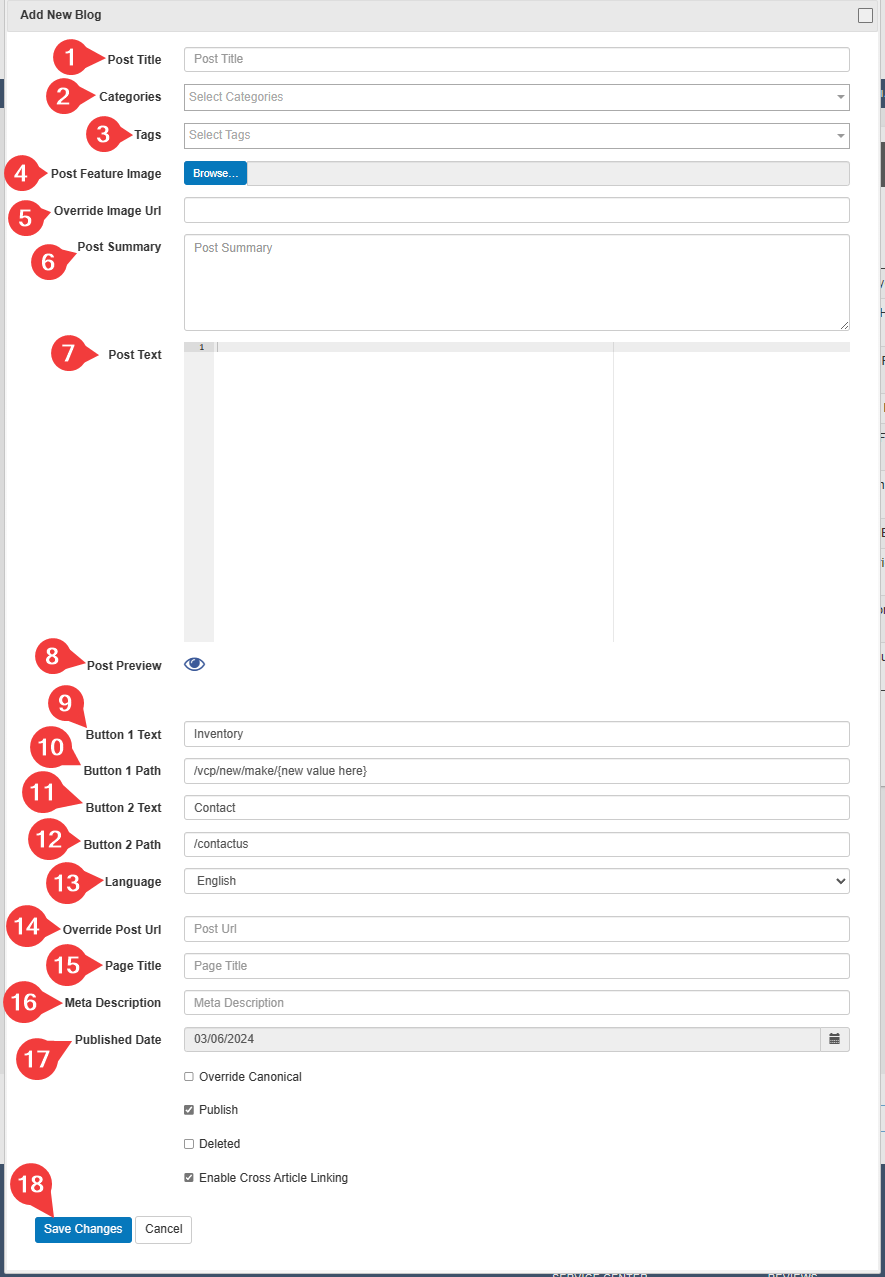
Follow the directions below to Add/Post articles to the Community Events Page:
- You must be logged into the site
- Admin Login or Login ->My Dashboard -> Dashboard Menu -> Blog Management Dashboard
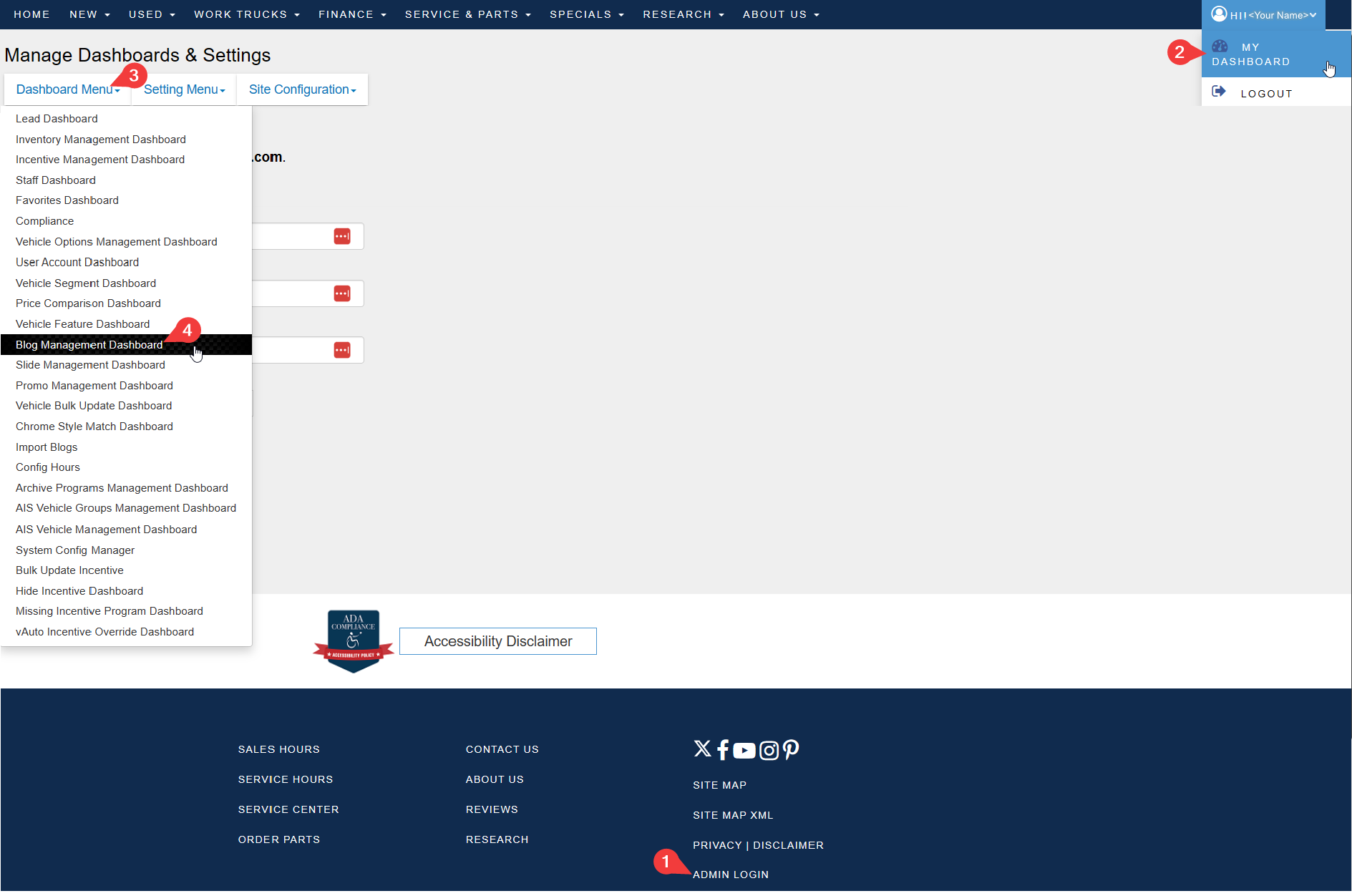
- Admin Login or Login ->My Dashboard -> Dashboard Menu -> Blog Management Dashboard
- Click “Add New Blog” in the top right corner

- Fill out the form as follows:
- Post Title: Copy the title of the article and paste it here
- Categories: Select ONLY ONE that applies
Review: If the article is about a single new vehicle
Comparison: If title contains “vs”
Used Buying Guide: If the article is used or pre-owned
Blog Post: If the article isn’t vehicle-specific

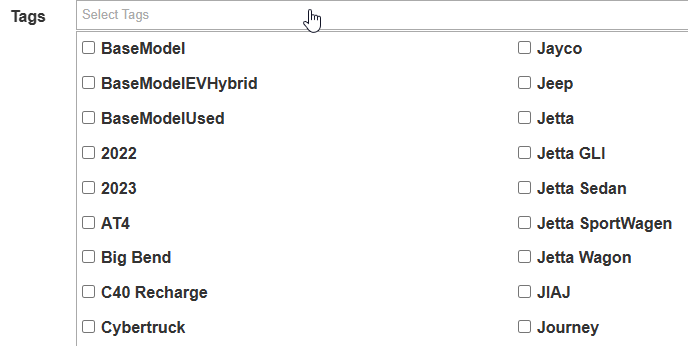
Tags: Select ALL that apply including:
Year of vehicle(s) in article (Ex: 2024)
Make of vehicle(s) in article (Ex: Ford)
Model of vehicle(s) in article (Ex: Escape)
Type of vehicle(s) in article (Ex: New)
Body Style of vehicle(s) in article (Ex: SUV)
If the article is a Review of a model's newest model year, check the 'BaseModel' tag.
If it is a Used Buying Guide, check the 'BaseModelUsed' tag
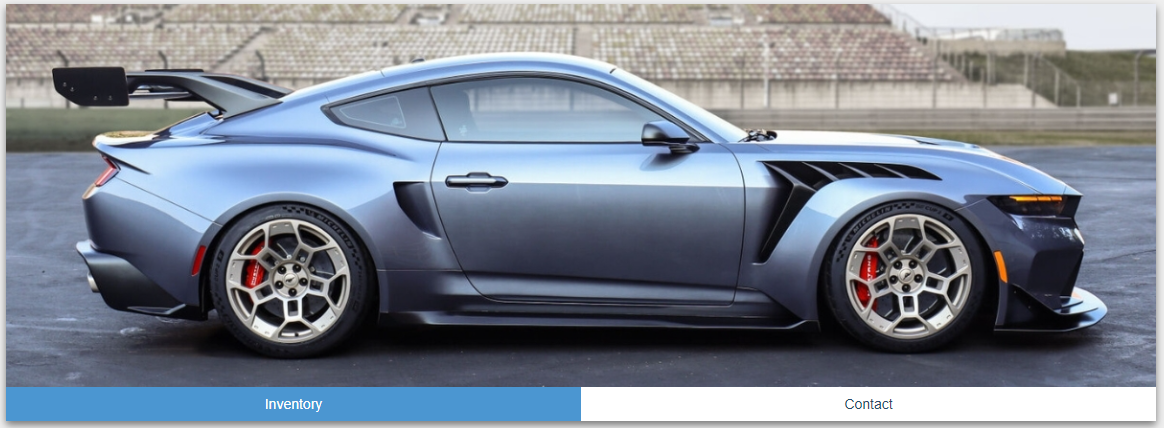
Post Feature Image: Upload an image from your computer by clicking on 'Browse' and selecting the file.
Default aspect ratio is 3:1 or 1200px:400px
Override Image Url:
Post Summary: Just copy the very first paragraph of the article into this section
Post Text: Paste the full article HTML into this section
Post Preview: Click the 'Eye' to first preview what the article will look like before 'Saving Changes'
Button 1 Text: Defaults to 'Inventory' (see below)
Button 1 Path: The URL path for the first button. Normally this will be the VCP page of the vehicle that the article is referencing. This makes sure all vehicles like this one will be shown.
If it is a comparison, use the VCP of the vehicle that matches the dealer’s manufacturer.
/vcp/(type)/(make)/(model)
Button 2 Text: Defaults to 'Contact' (see below)
Button 2 Path: the URL path for the second button. Defaults to /contactus
Language: English is the only option
Override Post Url: Used to change the resolving URL for the page. Whatever is in this field will be the page url
Page Title:
Meta Description:
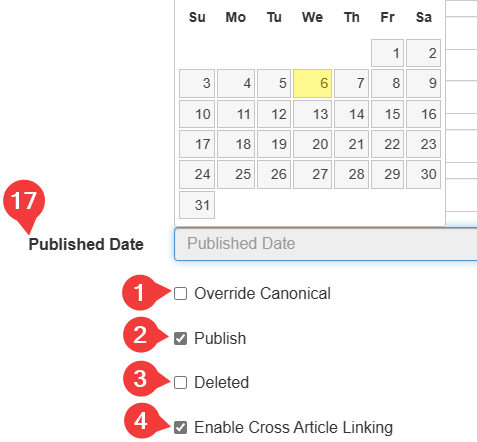
Published Date: Select the Date you want the Blog Article published.
Override Canonical:
Publish: Defaults to Checked, no need to change
Deleted:
Enable Cross Article Linking: (Optional) Cross-linking will include links to similar articles of the same type at the bottom of the article. It is good for SEO! Check box, unless you want no links at the bottom of the article.
Click 'Save Changes'